Sunday, August 7, 2011

Export a SharePoint Designer workflow to Visual Studio in SharePoint 2010


Common situation when designing workflow is that you start to design workflow in SharePoint Designer and then you want to add some code in Visual Studio.
In the following example, I will go through the procedure to create a workflow in SharePoint Designer and then open it and deploy it from Visual Studio.
Let’s start by creating a reusable workflow in SharePoint Designer
scl4
Enter the workflow information
scl5
and then just implement one step to set the document status to approve:
scl6
Next, in order to be able to reuse it in all the sites from site collection in SharePoint, publish the workflow globally:
scl17
Save the workflow and then Save it as a template :
scl8
You should see the confirmation :
scl7
Now, if you go to the Site Library, you will see this:
scl9
Save the .wsp localy and then, open Visual Studio and choose to import a workflow:
scl10
You can deploy it as a sandbox:
scl11
and select your .wsp and all the elements included in the .wsp:
image
Wait for importation to be completed:
scl12
Then deploy the solution:
scl13
If you have already saved it in SharePoint Designer, you will have a conflict and see this:
image
Just select Resolve Automatically to delete the workflow deployed by SharePoint Designer.
From the website, you should now see that the feature corresponding to this workflow is activated:
scl14
Then add the workflow on a document library:
scl16
Then, start a workflow on a document:
scl18

Custom Sequential Approval Workflow via Visual Studio 2010


My 3rd and most important contribution to Codeplex. Recently I need to work on some custom approval workflow. I didn’t get much help on net on Workflows. So I have create Custom Sequential Approval Workflow via Visual Studio 2010 and  thought its nice to contribute on codeplex with that project which can help everyone, following are the screen shots of the workflow. Download Source Code
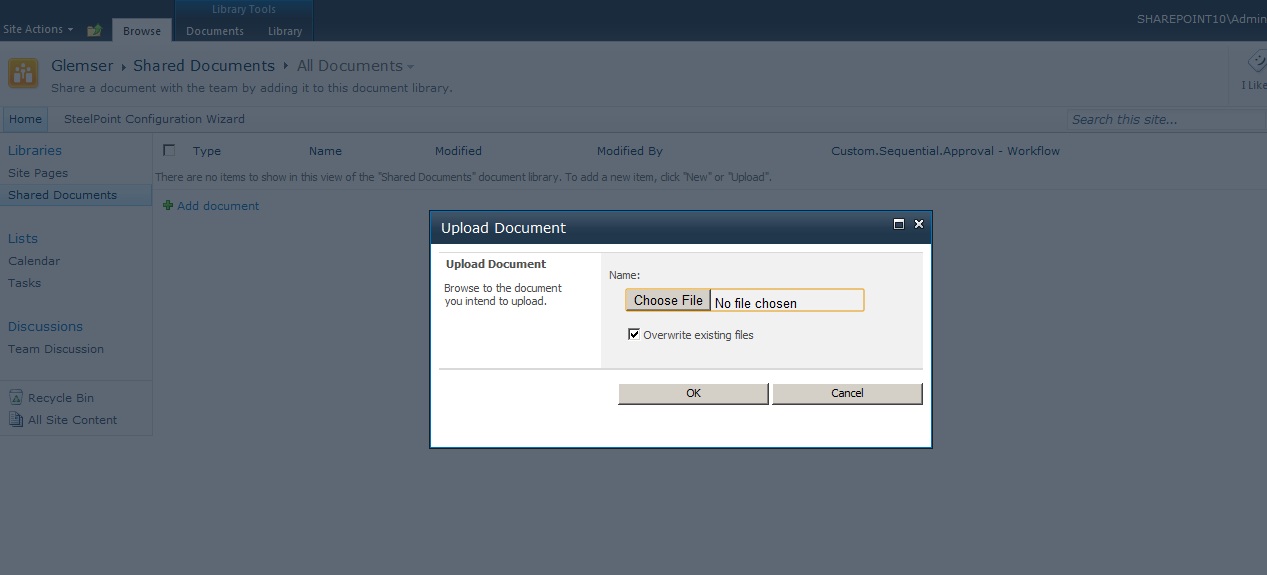
Upload Document in Document Library
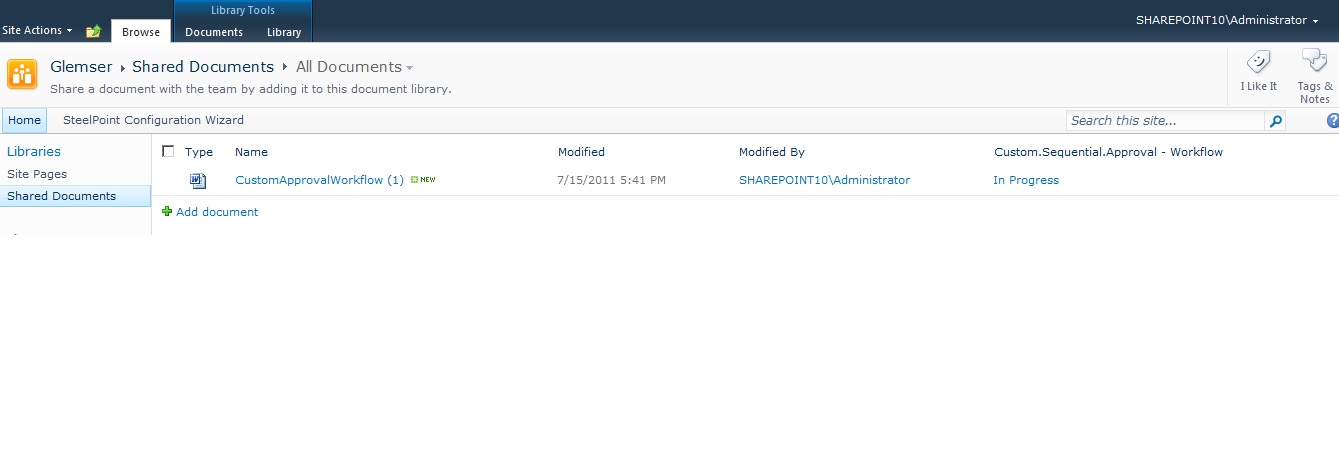
Check Workflow column is In Process

Task is created in Task List

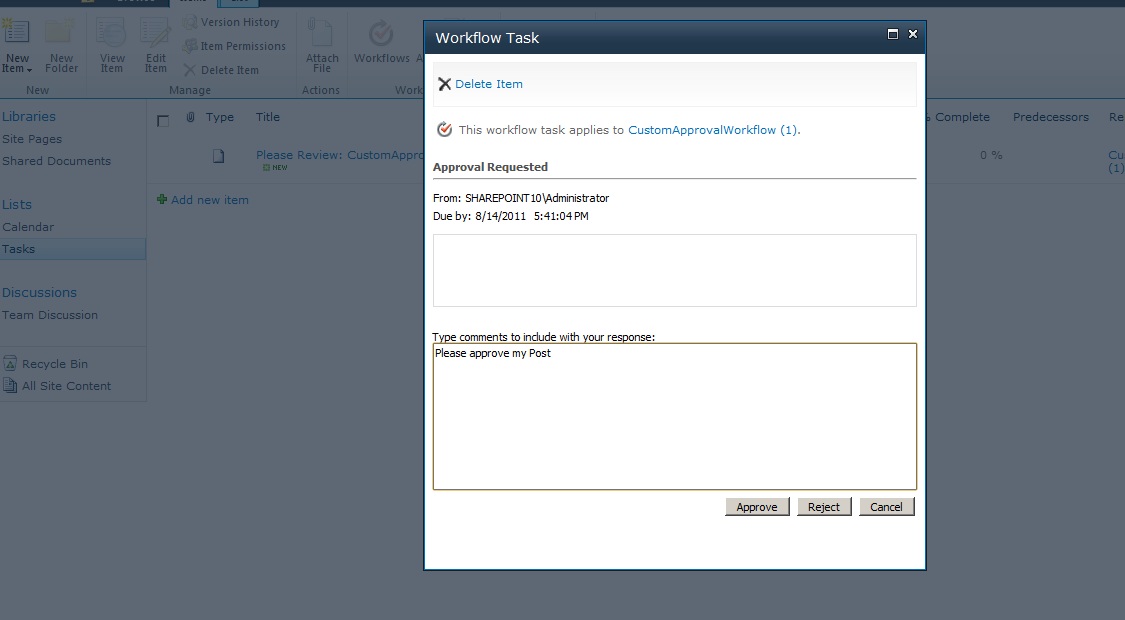
Click on Task will open the OOB Approval form Popup

Check Task list , Task is Approved and Completed

Check Workflow Status its Completed

Happy Coding !!!!!

SharePoint Escape Characters


How sharepoint handles escape characters? Sharepoint internally replace escape character with some code like, if you are creating field with space in that name e.g. “my column” then sharepoint replace space with _x0020_ e.g “my_x0020_column”.
Following are the complete escape characters and their code in Sharepoint.
Blank space: _x0020_
Underscore: _x002d_
Dash: _x0027_
Here is the Format:
_x00[the escape code]_
Char Code
[space] 20
3E
# 23
% 25
{ 7B
} 7D
| 7C
\ 5C
^ 5E
~ 7E
[ 5B
] 5D
` 60
; 3B
/ 2F
? 3F
: 3A
@ 40
= 3D
& 26
$ 24
 public static String GetFieldNamebyEscapeCharacter(String sName)
        {
            String sReturn = sName;
            String sChar = "_x00{0}_";
            sReturn = sReturn.Replace("_", String.Format(sChar, "2d"));
            sReturn = sReturn.Replace(" ", String.Format(sChar, "20"));
            sReturn = sReturn.Replace("-", String.Format(sChar, "27"));
            sReturn = sReturn.Replace("#", String.Format(sChar, "23"));
            sReturn = sReturn.Replace("%", String.Format(sChar, "25"));
            sReturn = sReturn.Replace("{", String.Format(sChar, "7B"));
            sReturn = sReturn.Replace("}", String.Format(sChar, "7D"));
            sReturn = sReturn.Replace("|", String.Format(sChar, "7C"));
            sReturn = sReturn.Replace("\\", String.Format(sChar, "5C"));
            sReturn = sReturn.Replace("^", String.Format(sChar, "5E"));
            sReturn = sReturn.Replace("~", String.Format(sChar, "7E"));
            sReturn = sReturn.Replace("[", String.Format(sChar, "5B"));
            sReturn = sReturn.Replace("]", String.Format(sChar, "5D"));
            sReturn = sReturn.Replace("`", String.Format(sChar, "60"));
            sReturn = sReturn.Replace(";", String.Format(sChar, "3B"));
            sReturn = sReturn.Replace("/", String.Format(sChar, "2F"));
            sReturn = sReturn.Replace("?", String.Format(sChar, "3F"));
            sReturn = sReturn.Replace(":", String.Format(sChar, "3A"));
            sReturn = sReturn.Replace("@", String.Format(sChar, "40"));
            sReturn = sReturn.Replace("=", String.Format(sChar, "3D"));
            sReturn = sReturn.Replace("&", String.Format(sChar, "26"));
            sReturn = sReturn.Replace("$", String.Format(sChar, "24"));
            return sReturn;
        }